Showing posts with label linux. Show all posts

Thursday, May 7, 2026

std::system Windows vs Linux

On Windows the C++ function std::system() is essentially a wrapper around the command processor (cmd.exe). When the process finishes, the exit code is passed directly back to you. If your program exits with 1, the integer returned by std::system is 1. On Linux, it might return 256.

On Linux, a single integer return value isn't just an exit code; it's a status word containing a wealth of information about how the process died. The OS packs different data into specific bit ranges. In most Linux implementations, the exit code is shifted into the high byte. This means a return code of 1 is stored as 1 << 8, which equals 256. To get back the exit code, you have to right shift the status code by 8 bits. The portable way is to use WEXITSTATUS macro.

To write code that works on both platforms, you cannot treat the return value as a raw number. You must use the decoding macros provided in <sys/wait.h> on Linux. You should always check if the process actually finished before asking for the code. Here is the safest pattern for Linux:

#include <sys/wait.h>
int status = std::system("./my_script.sh");
if (WIFEXITED(status)) {
  int exitCode = WEXITSTATUS(status); //
  std::cout << "Success! Code: " << exitCode;
} else if (WIFSIGNALED(status)) {
  int sig = WTERMSIG(status);
  std::cout << "Killed by signal: " << sig;
}

Wednesday, January 29, 2025

Linux: Dynamic vs Static Linking

Today, we had a chat with a colleague about whether a C/C++ binary (ELF) built on one Linux distribution would work on another. After some research, I found that default GCC builds are dynamically linked, and the ELF file contains:

  1. Your program's code
  2. A list of dynamic dependencies (shared libraries) it needs
  3. Symbols that need to be resolved at runtime
However, it does not contain the actual shared libraries - those need to be present on the system where you run the program. You can see these dependencies using ldd. For example, a simple C "hello world" program with only a printf() call can be built with gcc hello.c -o hello. ldd hello output:
linux-vdso.so.1 (0x00007fff6a0e1000)
libc.so.6 => /lib/x86_64-linux-gnu/libc.so.6 (0x00007fdaf6400000)
/lib64/ld-linux-x86-64.so.2 (0x00007fdaf66b3000)

The files size is 15960 bytes. To make is truly independent of any shared library we would build it with gcc -static hello.c -o hello_static. ldd hello_static shows:
not a dynamic executable
The size of hello_static is a whopping 900344 bytes, 56X more than the dynamically linked build.

The good news is that these libraries are present by default on virtually every Linux distribution, so including them in every executable would waste a lot of space. However, you must ensure that C++ version (C++17, C++20, etc.) specific features used in your code are supported by the gcc/g++ version on the target Linux distribution. Of course, the CPU architecture has to be the same too — that goes without saying.

On Windows, C++ libraries come with Visual C++ Redistributable:

Note that  if a Windows PC can successfully load and run a DLL compiled with a specific C++ version, it can also run an EXE compiled with that C++ version because the C++ runtime requirements are the same whether the code is in a DLL or EXE. The only difference is how the code is packaged and loaded, not its runtime requirements.

Tuesday, July 30, 2024

LONG_MAX is different for Windows 64 and Linux 64

When you generate code with Simulink (MATLAB R2023b) using ert.tlc, the default OS is Windows 64, see Configuration Parameters - Hardware Implementation - Device type. When you generate C code, the <model name>_private.h file will contain checks for ULONG_MAX and LONG_MAX.

On 64-bit Windows, the long type is typically 32 bits, which causes the LONG_MAX to be 0x7FFFFFFF. On 64-bit Linux systems, the long type is typically 64 bits, i.e. LONG_MAX is 0x7FFFFFFFFFFFFFFF. When you use code generated with the Windows 64 setting and use that on a Linux 64 OS, the check in <model name>_private.h will fail. The solution is to use the Linux 64 setting in Simulink which removes the LONG_MAX check from header file.

This checks seem to have been added after MATLAB R2022b because code generated with R2022b does not have them.

Monday, December 4, 2023

Sharing files between Windows and Ubuntu virtual machine

I have a Windows 10 PC with Ubuntu 22.04 installed as a VirtualBox virtual machine. There are other ways to share files between Windows and Ubuntu, but the following is the most general way I know:

  1. On Windows, share a folder (e.g. "temp") with your own windows user name.
  2. Find the IP address of VirtualBox ethernet adapter:

  3. On Ubuntu make sure you can ping that IP address.
  4. Open a new Files window, at the bottom left, click on other locations. Then, at the bottom enter smb://<VirtualbBox ethernet adapter IP address>/<Windows folder name>

  5. After clicking Connect button, you should see the temp folder:

Installing Eclipse CDT and build-essentials to offline Ubuntu

On my offline Ubuntu I use Eclipse C++ (CDT) and build-essentials to build C++ projects. To install Eclipse C++ (CDT) and build-essentials to offline Ubuntu:
  1. Download Linux version of Eclipse C++, copy to offline Ubuntu and extract. You can directly run eclipse without any further installation, but you need to finish the following steps to build a C++ project.
  2. On your Windows PC that is connected to the internet, install a virtualizer like VirtualBox  and install Ubuntu Desktop 22.04 as virtual machine.
  3. Enable Windows - Ubuntu file sharing.
  4. Use the following shell script to download build_essentials on your online PCs Ubuntu virtual machine and its dependencies. You can copy these downloads to your offline Ubuntu and install them following the steps written as comments down below:

Friday, November 3, 2023

Handling left over carriage return

Lines in text files created in Windows end with '\r\n'. If you read that text file in Linux with C++ getline(), your line will have a '\r' at the end because in Linux, getline() only gets rid of '\n'. If you have code that reads a certain number of characters and converts it to floating point using std::stod(), you might get std::invalid_argument exception when trying to read multiple values. You can use the following to take care of this problem:

Tuesday, November 1, 2022

Formatting disk from USB

I recently needed to wipe a laptop's disk. I used Rufus and Puppy Linux (ISO size was 409MB) to create a bootable USB drive. After booting into Puppy Linux, I used the following commands:
  1. lsblk to see disk partitions and their sizes
  2. lsblk -f to see partition file systems
  3. sudo mkfs -t ntfs /dev/<partition>
Formatting a disk (initializing with zeros) of 500GB can take 3 hours.

Wednesday, June 29, 2022

Stack overflow on Linux

...exceeding the stack limit is usually considered a segmentation violation, and systems with enough memory management to detect it will send a SIGSEGV [segmentation fault] when it happens.

A typical symptom in a C++ program running on Linux is getting a segmentation fault when entering an innocent function like pow(). To debug, decrease stack usage (e.g. if there is a static array, decrease its size) in the code before the segfault, run your program in debug mode, see if your program continued further than before. Unfortunately, the same program might be working on Windows without problems.

To increase stack size on Linux, use ulimit -s <size_KB>

Sunday, March 13, 2022

Generating Linux programs in Windows Visual Studio C++

You can use Windows 10 and Visual Studio 2022 to generate, debug and analyze Linux binaries:

  1. Install WSL, restart computer
  2. Open cmd, type wsl to enable linux prompt, install tools
    1. sudo apt-get update
    2. sudo apt install g++ gdb make ninja-build rsync zip
  3. Open Visual Studio, on menu Tools - Get Tools and Features, add "Linux development with C++" if you haven't done already:
  4. In Visual Studio, 
    1. Create new project and select CMake project:
    2. After project is created, change Local Machine to WSL:Ubuntu. Change Startup item to your project name:
    3. If Visual Studio notifies you that CMake needs to be updated/installed, let it do it.
    4. Press debug button to build and run:
    5. At the bottom of the screen, in Output window, change it to CMake:
    6. Visual Studio tells you where it has generated the Linux binary. Copy this folder to clipboard:
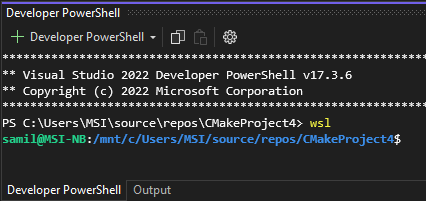
    7. Go to View - Terminal. In the opened PowerShell terminal at the bottom, type wsl and press enter, the prompt will change to linux :
    8. Type cd and paste the folder you copied:
    9. Now you can also run your Linux binary from terminal:
    10. To use valgrind, first install it in PowerShell by typing sudo apt install valgrind
    11. Now you can use valgrind on your binary without leaving Visual Studio by typing (replace ./CMakeProject4 with your own project name): valgrind --tool=memcheck --leak-check=yes ./CMakeProject4:
    12. To copy the binary to a Windows folder, you can open File Explorer from Linux prompt by typing explorer.exe .:
    13. Congratulations!

Monday, March 7, 2022

Linux cheat sheet

Linux commands I frequently use:
  1. Change to root (on Ubuntu): sudo -i
  2. uname -r 
  3. sudo apt update && sudo apt upgrade
  4. Show processes whose name contains a specific string: ps -ef | grep <string>
  5. Forcefully kill process: pkill -f <process name>
    • Example: pkill -f update-notifier
  6. Run process in background: ./<process name> &
  7. Show network card info: ifconfig
  8. Show resource usage of running processes: top, htop
  9. Reverse-i-search with ctrl+r
  10. Change MAC address: sudo ifconfig enp2s0 hw ether 64:00:6a:28:fa:ac
  11. Ubuntu: Allow GUI root login
  12. Enable SSH to root user by adding the line PermitRootLogin yes to /etc/ssh/sshd_config
  13. Enable receiving UDP packets 
    1. Disable firewall completely: sudo ufw disable
    2. Or you can allow for example on port 5000: sudo ufw allow from any to any port 5000 proto udp
  14. Create image of USB with size of 8GB: dd if=/dev/sdb of=/home/myimage.img bs=1G count=8 status=progress
Tools:
  1. sudo apt install net-tools
  2. sudo apt install build-essential
    • gcc --version
    • make --version
  3. Eclipse IDE for C++
    1. In a project, when you remove a folder and copy another version of the same folder but with fewer files, during build, you might get the error "No rule to make target…". Right click on the project and select refresh, this rebuilds the index. Now you can build successfully.
  4. To use psftp from another Windows computer for file transfer: sudo apt install openssh-server
  5. sudo apt install rt-tests
    • Sample usage: cyclictest l100000 -t 8 p95
  6. sudo apt install htop
  7. For remote connection from Windows: 
    • sudo apt install xrdp
    • sudo systemctl restart xrdp
    • Note that you have to be logged out from Ubuntu for remote from Windows to work.

Sunday, January 30, 2022

Installing C++17 on CentOS 7 and using it with Eclipse

By default, CentOS 7 supports C++ up to 2011 (C++11). For C++17 (2017) support with Eclipse IDE:
  1. Login to CentoOS 7 as root.
  2. Open terminal.
  3. Install Developer Toolset 8yum install dev-toolset-8
  4. cd into Eclipse folder.
  5. Enable toolset 8 for Eclipse and open it: scl enable devtoolset-8 ./eclipse
  6. After Eclipse opens, open/create a C++ project, use this filesystem example.
  7. Go to project properties - C/C++ Build - Settings - Tool Settings - GCC C++ Compiler -  Dialect - Other dialect flags and enter -std=c++17:
  8. Now you can build your project using C++ 2017 features. If you print __cplusplus, you get 201703. Note that project include folders point to devtoolset-8:

Rebuild index. Now you can compile but still get linker error.

Add linker flag -lstdc++fs and reorder linker flags so that -lstdc++fs is at the end: ${COMMAND} ${OUTPUT_FLAG} ${OUTPUT_PREFIX}${OUTPUT} ${INPUTS} ${FLAGS}

Now you can successfully run the example.

Monday, January 10, 2022

Eclipse working folder

To change Eclipse working folder so that file paths are the same when running project from IDE and when running the binary from terminal, you have to set the working directory (similar to Visual Studio) using the Run Configurations - Arguments - Working Directory: ${workspace_loc:MyProject/Debug}

Note that Eclipse run configurations are saved in <eclipse-workspace>.metadata/.plugins/org.eclipse.debug.core/.launches

To copy files on Linux Eclipse in post-build step:

  1. Select Project - Properties - C/C++ Build - Settings - Build Steps
  2. In Post-build steps, enter cp source destination
If you have changed the working folder as explained above, then source will be relative to that working folder. If, for example, you want to copy a folder to working folder, you could use cp -f -R ../src/config .
You can enter more than one cp command by separating them with a semicolon (;)

Wednesday, December 15, 2021

Getting file/folder list in Windows and Linux

Getting file/folder list in Windows and Linux without using libraries is a tricky business. In Windows Visual Studio, there is also a character set setting (Project properties - Advanced - Character Set) which has to be taken into account.

Wednesday, November 10, 2021

Remote connection and file transfer

The easiest way to connect from Windows to a remote Linux computer is to fire up cmd.exe and type ssh user@ip where user is the Linux user name and ip is the IP address of the Linux computer. 

For file transfer, you can use sftp user@ip or scp fileName user@remoteIP/remoteFileName.

ssh, sftp and scp come with Windows 10, you don't have to install anything. Just make sure that SSH is enabled on Linux.