Showing posts with label visual studio. Show all posts

Friday, May 8, 2026

Embed .NET runtime into C# exe

When writing a C# program, if you want to bundle the .NET runtime with the application so that it can run on a Windows PC without a separate .NET installation:
  1. Create the project as "Windows Forms App", not "Windows Forms App (.NET Framework)"
  2. Use Release x64 configuration instead of only Any CPU
  3. In Visual Studio 2022, open the terminal and run:dotnet publish -c Release -r win-x64 -p:Platform=x64 --self-contained true -p:PublishSingleFile=true
  4. The published executable is located in:
  5. bin\x64\Release\net8.0-windows\win-x64\publish\
  6. The generated EXE includes the .NET runtime and can run on systems without .NET installed.
Depending on the NuGet packages used (e.g. S7NetPlus), additional DLLs may still appear in the publish folder and should also be distributed with the EXE.

Wednesday, February 4, 2026

Embedding Visual C++ Runtime into DLL

A user of one of my old desktop programs (written in Java8 and C++) reported that they were getting a "[FileName].dll is not a valid Win32 application." (the Turkish version: "... geçerli bir Win32 uygulaması değil"). Due to the "Win32" in the error message, my first thought was that they were using my 64-bit app on a 32-bit setup. However, that was not the case. They compared the PC that my app was working with the PC that was showing error and found out that they were able to make it work by copying mscvr120.dll file to Windows/System32 folder. After chatting with Gemini, here are my findings:
  • In the world of Windows development, Win32 is the name of the entire programming interface (the API) used to interact with the operating system. When they later moved to 64-bit, instead of renaming it to "Win64," they kept the name Win32 for the API itself to maintain developer familiarity. Technically, 64-bit Windows programs run on the Win32 API for 64-bit systems. So, when the OS says "not a valid Win32 application," it really means "not a valid Windows DLL/exe"
  • msvcr120.dll is a Dynamic Link Library (DLL) file that is a core component of the Microsoft Visual C++ Redistributable (Runtime) for Visual Studio 2013. Since the problematic PC never had any Visual Studio installed on it, it was missing the runtime dependency of my DLL.
  • Shared runtimes are used to reduce the size of the compiled binary, but they introduce a dependency on the target operating system to provide the runtime.
  • You can check the dependencies of your DLL or EXE by using Visual Studio's dumpbin.exe. On cmd, dumpbin /dependents filename.dll shows you the DLLs filename.dll depends on.
    • If you see MSVCR....dll, you need the C Runtime.
    • If you see MSVCP....dll, you also need the C++ Standard Library.
    • If you see KERNEL32.dll or USER32.dll, don't worry, those are part of Windows itself and are always present.
  • Previously, I discussed how to embed the C runtime in Linux. You can also  embed/bake the C/C++ Runtime into your binary with Visual Studio via Project Properties > C/C++ > Code Generation > Runtime Library
    • The default of /MD (Multi-threaded DLL) or /MDd (Multi-threaded Debug DLL) uses shared runtime
    • Changing it to /MT (Multi-threaded), embeds the code into the DLL, leaving it with zero external dependencies. You can verify that your DLL has no dependencies (besides KERNEL32.dll) with dumpbin.exe.
    • The disadvanages of /MT
      • Larger file size
      • If you have five different DLLs all compiled with /MT, each one has its own copy of the runtime in RAM. If they were compiled with /MD, they would all share a single instance of the shared DLL in memory.
      • If a security flaw is found in the Microsoft C++ Runtime, Windows Update cannot fix your app. You would have to recompile your project with the latest patches and send the new DLL to your users.
      • If you use /MT, make sure that any object created inside your DLL is also destroyed inside your DLL (e.g., using a DestroyObject() function you provide).
      • For Debug, use /MDd because it is optimized for finding bugs, filling uninitialized memory with specific patterns (like 0xCCCCCCCC) etc.
  • Windows folder names can be confusing:
    • C:\Windows\System32: Contrary to the name, this folder is for 64-bit DLLs on a 64-bit version of Windows.
    • C:\Windows\SysWOW64: This folder is for 32-bit DLLs. WOW64 stands for "Windows on Windows 64-bit".

Monday, April 14, 2025

First Step in Safety-Critical Software Development

The first action when developing safety-critical software is to add automatic commit checks for compiler warnings and reject the commit if any warnings are present. Enable the highest warning level and treat all warnings as errors.

Common Visual C++ warnings relevant to safety critical systems:

  1. C26451: Arithmetic overflow: Using operator 'op' on a value that may overflow the result (comes from Code Analysis with /analyze). Example: uint64_t c = a + b where a and b are of type uint32_t
  2. C4244: Conversion from ‘type1’ to ‘type2’, possible loss of data. Example: int → char or double → float
  3. C4018: Signed/unsigned mismatch. Can cause logic bugs and unsafe comparisons.
  4. C4701: Potentially uninitialized variable
  5. C4715: Not all control paths return a value
  6. C4013: 'function' undefined; assuming extern returning int
Of course, there is much more that needs to be done; in this blog post, I just wanted to focus on the first step from the perspective of a tech lead.

Thursday, January 9, 2025

Memory Insights from a Segfault

Recently, a program crashed with segmentation fault (sigsegv). Since segmentation faults can happen for a variety of reasons, it took some time to find out that the root cause was insufficient stack (stack overflow) due to a function allocating extra 16kB for a local variable, float var[4096]. The quick fix was to increase the stack size of the thread calling that function from 32kB to 1MB. 

Another solution is to move var to static storage instead of using the stack by changing the definition to static float var[4096]. Upon closer inspection of the code, I saw that var was just used to copy a static array before sending it to another function. Since that function was not modifying the array, there was no reason for the copy. Removing var removed large stack allocation. 

Problems like this are stressful in the short term but provide an opportunity to review the concept of memory regions. Here's a concise breakdown:

Static Storage
- Memory allocated at program start, lives for entire program duration
- Size must be known at compile time 
- Good for: fixed-size buffers that exist for whole program 
- Example: static uint8_t buffer[1024];
- Zero runtime allocation overhead 
- Can't be resized 

Stack
- Memory allocated/deallocated automatically when entering/leaving scope 
- Very fast allocation/deallocation - Limited size (often few MB) 
- Good for: small-to-medium temporary buffers 
- Example: void foo() { uint8_t temp[1024]; }
- Risk of stack overflow with large allocations

Heap 
- Dynamic runtime allocation 
- More flexible but slower than stack 
- Larger size available 
- Good for: large buffers or unknown sizes 
- Example: auto* buffer = new uint8_t[1024];
- Risk of fragmentation 
- Must manually manage memory 

For embedded systems with fixed-size allocation needs: 
1. Use static storage for long-lived, known-size buffers 
2. Use stack for small temporary buffers 
3. Consider static memory pools instead of raw heap allocation if you need dynamic allocation

In Visual Studio 2022, you can use Build > Run Code Analysis to detect functions with large stack allocations, they will be marked with C6262 excessive stack usage warnings.

Wednesday, March 6, 2024

Visual Studio call hierarchy

With Visual Studio 2022, the call hierarchy feature has two problems:
  1. Despite me being always interested in the incoming calls to a function, never outgoing callsI always have to click the "Calls To" icon for each level and also click the entry in Call Sites to go to the line.
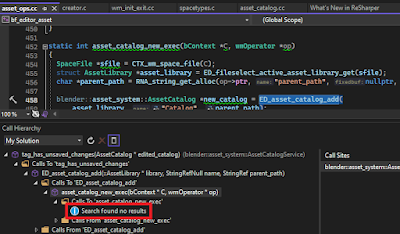
  2. If at any stage there is a function pointer assignment, Visual Studio loses track (code sample from open source Blender project):

ReSharper C++ call tracking fixes these problems and makes navigating the call hierarchy a breeze and you can follow the sequence up to main:

Visual Assist X, which is 70$ cheaper per license than ReSharper C++, does not have this feature, which is a deal breaker for me.

ReSharper C++ also helps with useful tips to modernize the code base. For more, see ReSharper C++ Quick Tips


Note that if instead of Visual Studio, you use CLion, it includes ReSharper features.

Tuesday, January 16, 2024

Visual Studio C++ debug and release configurations

Visual Studio 2019 C++ debug configuration is more forgiving than release. Examples that a debug build allows but release build does not:
enum E {a = 0, b=1};
E r[3] = {0}; //causes "initializing: cannot convert from int to E"

double a = 0;
E d = (E) a; //causes "typecast: cannot convert from double to E"

typedef struct {
    double d[3] {0}; //causes "an in-class initializer is not allowed for a member 
of an anonymous union in non-class scope"
} S; class C { double s[3] {0}; //causes "cannot specify explicit initializer for arrays" }
Therefore, to make sure that the C/C++ code you generated from Simulink model is suitable for building, in your nightly tests, build in release configuration.

Monday, January 15, 2024

Visual Studio: Include all *.c and *.cpp by default

In Eclipse CDT, implementation files (*c., *.cpp) are included until you exclude them. In Visual Studio 2019, it is the reverse, i.e. files are excluded until you manually include them in your project. To include all files automatically and just exclude the file sim\ert_rtw\ert_main.c file, open your *.vcxproj file with an editor, remove all <CICompile Include = .../> lines and use the following:
<ItemGroup>
    <ClCompile Include="**\*.cpp" />
    <ClCompile Include="**\*.c" Exclude="sim\ert_rtw\ert_main.c" />
</ItemGroup>

Wednesday, October 26, 2022

Formatting C++ code in Visual Studio

C++ code is usually formatted as follows:
if (condition)
{

}
else {

}

I like the curly braces to be on the same line so that I can see more code in less lines:
if (condition) {

} else {

}

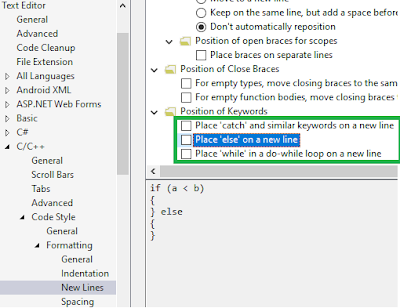
To define this format in Visual Studio 2022, go to Tools - Options - Text Editor - C/C++ - Code Style - Formatting - New Lines and uncheck the boxes at the bottom:
After this change, you can update the format of an existing file with Edit - Advanced - Format Document.

If you also want the code snippet for if to behave similarly, go to Tools - Code Snippet Manager - Visual C++, copy the location of the if snippet file, open the file in a text editor with admin privileges and edit and save it:


Tuesday, June 21, 2022

Stop build when "C4013 ... undefined; assuming extern returning int"

Recently I had to deal with a bug in a C project whose root cause was fabs not functioning properly due to missing #include <math>. Finding the root cause involved diving into more than 4 layers of abstractions, it was not fun (!) When run from Visual Studio as a dll project, the code resulted in fabs(10) >= fabs(20) to be true! When I compiled the project with Visual Studio, it gave "warning C4013: 'fabs' undefined; assuming extern returning int". I would normally expect the build to fail in the linking stage. Probably the linker is able to find the fabs but since it was first assumed to be returning int (4 bytes) and fabs returns double (8 bytes), this will result in 4 bytes of the return value being ignored, which can cause funny values. For more about the reason why this behavior is allowed, see my similar trouble with malloc before.

Another interesting fact is that the code was working properly when run from a Simulink s-function. I assume Simulink includes math.h somewhere in its hierarchy. Here is the simplified code:

To prevent Visual Studio from building when 4013 warning exists, go to project Properties - C/C++ - Advanced - Treat Specific Warnings as Errors - Add 4013:


Sunday, March 13, 2022

Generating Linux programs in Windows Visual Studio C++

You can use Windows 10 and Visual Studio 2022 to generate, debug and analyze Linux binaries:

  1. Install WSL, restart computer
  2. Open cmd, type wsl to enable linux prompt, install tools: 
    1. sudo apt-get update
    2. sudo apt install g++ gdb make ninja-build rsync zip
  3. Open Visual Studio, on menu Tools - Get Tools and Features, add "Linux development with C++" if you haven't done already:
  4. In Visual Studio, 
    1. Create new project and select CMake project:
    2. After project is created, change Local Machine to WSL:Ubuntu. Change Startup item to your project name:
    3. If Visual Studio notifies you that CMake needs to be updated/installed, let it do it.
    4. Press debug button to build and run:
    5. At the bottom of the screen, in Output window, change it to CMake:
    6. Visual Studio tells you where it has generated the Linux binary. Copy this folder to clipboard:
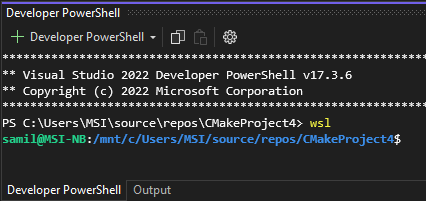
    7. Go to View - Terminal. In the opened PowerShell terminal at the bottom, type wsl and press enter, the prompt will change to linux :
    8. Type cd and paste the folder you copied:
    9. Now you can also run your Linux binary from terminal:
    10. To use valgrind, first install it in PowerShell by typing sudo apt install valgrind
    11. Now you can use valgrind on your binary without leaving Visual Studio by typing (replace ./CMakeProject4 with your own project name): valgrind --tool=memcheck --leak-check=yes ./CMakeProject4:
    12. To copy the binary to a Windows folder, you can open File Explorer from Linux prompt by typing explorer.exe .:
    13. Congratulations!

Friday, January 14, 2022

File search in Eclipse and Visual Studio

 To search for files in

  • Eclipse: ctrl + shift + r
  • Visual Studio: ctrl + , (comma)
    • It also searches for methods and classes

Wednesday, January 5, 2022

Checking C++ version in code

If your code has to behave differently for different C++ versions, you can check the value of __cplusplus directive. It will return the year and month of C++ standard used in your current environment. Examples:

  • 199711L stands for Year=1997, Month = 11
  • 201103L stands for Year=2011, Month = 03
If you want to run code only if C++ version is less than C++11, you write:
#if __cplusplus < 201100L
When you use Visual Studio 2019 and print the value of __cplusplus to console, you will see 199711, although in the project properties - C/C++ - Language page it is set to C++14:
For Visual Studio to output the correct value, you have to go to Configuration Properties > C/C++ > Command Line and add /Zc:__cplusplus. Now you get the correct value of 201402.

Tuesday, January 4, 2022

Visual Studio Setup

The default Visual Studio setup is impractical. Here is my setup for C++:

  • Output Directory: $(SolutionDir)bin\$(Platform)\$(Configuration)\
  • Intermediate Directory: $(SolutionDir)bin\intermediate\$(Platform)\$(Configuration)\
  • To read files from exe folder instead of solution folder when running from IDE, Working Directory: $(SolutionDir)bin\$(Platform)\$(Configuration)\

  • I put a sample VS2022 project template to github.
  • To copy an input file (file.txt) to exe folder after a build: xcopy $(SolutionDir)file.txt $(SolutionDir)bin\$(Platform)\$(Configuration)\ /Y

Note: If you use the same intermediate folder for all configurations, you might get "fatal error C1041: cannot open program database ...vc120.pdb". The solution is to set /FS command line flag.

Wednesday, July 14, 2021

C++: Using 1 byte enum

By default, enum size in C++ is usually 4 bytes, both in Windows and Linux. If you need to use 1 byte enum, you have to declare it as follows (requires at least C++ 11):

enum e : unsigned char { a, b };

printf("size = %ld\n", sizeof(e)) will output 1.

If you are using gcc (e.g. Eclipse), you can also use the compiler flag -fshort-enum (Eclipse properties - C/C++ Build - Settings - Tool Settings - GCC C++ Compiler - Miscellaneous) to convert all enums in code to 1 byte, but you won't have that option in Visual Studio. So it is better to use the unsigned char option.